




Remove Text From Video Without Reframing the Shot

Remove text from video with a free preview and no login: upload a clip, mark burned-in words or overlays, and compare the repaired area through real motion before export.

Drag and drop a video here, or choose a file to open the editor.

MP4MOVAVIMKVWEBM

Maximum file size: 100MB

Review a Text Remover Video in Three Difficult Scenes

Choose a sample that reveals the real repair challenge, then judge the former text area while the picture moves rather than approving one convenient still frame.

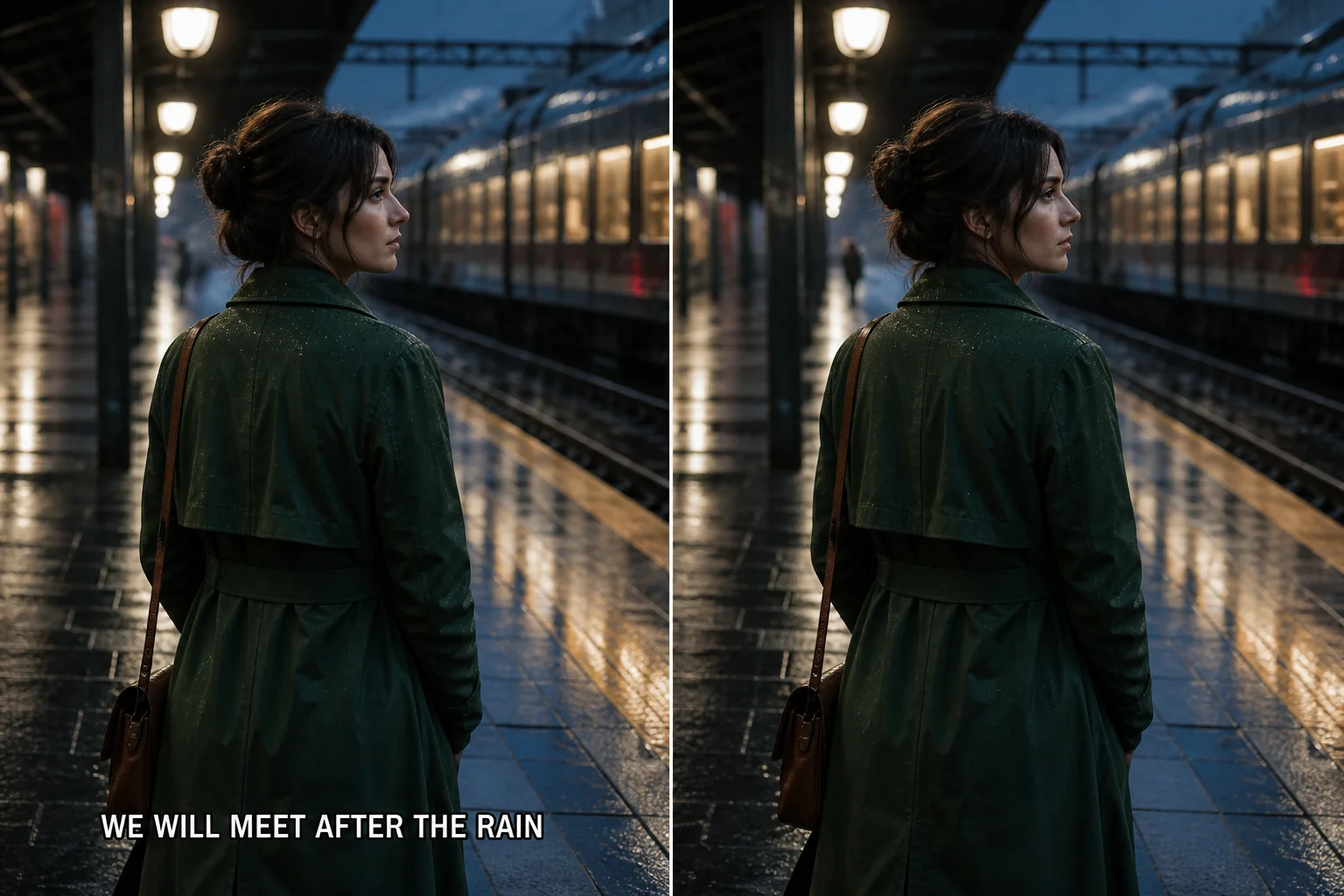
Clear Captions That Are Part of the Picture

Clear Captions That Are Part of the Picture

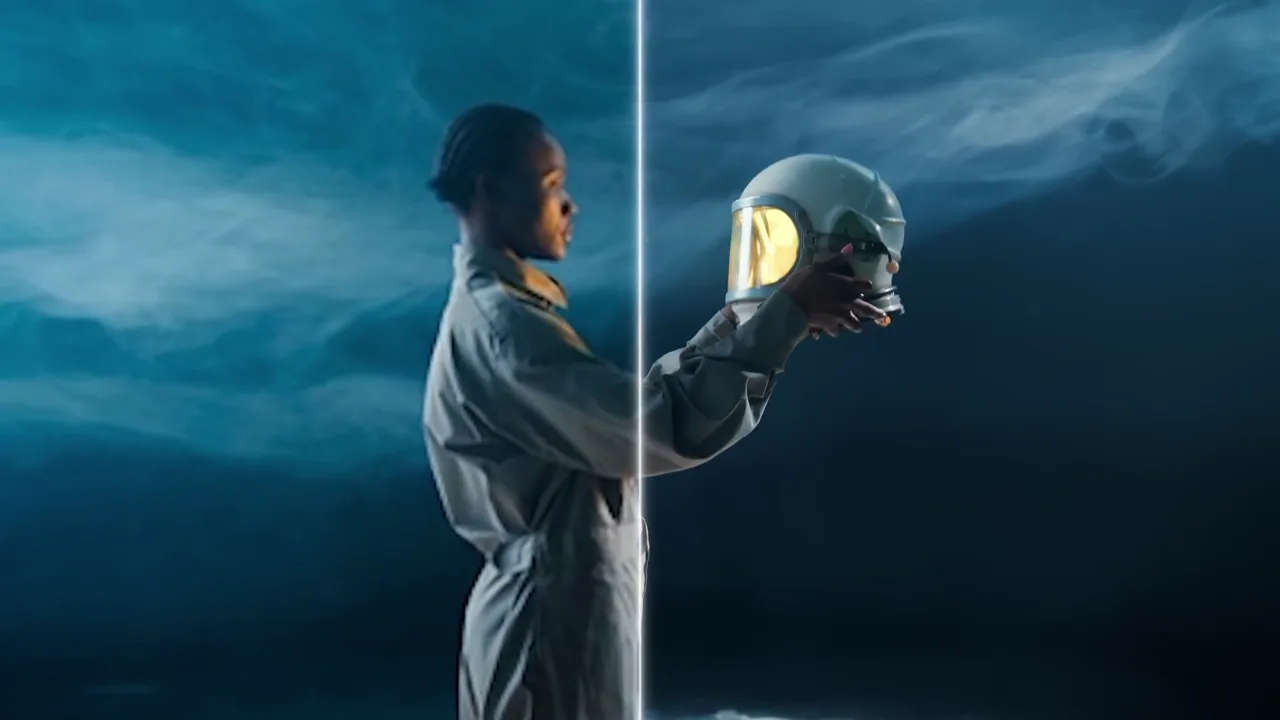
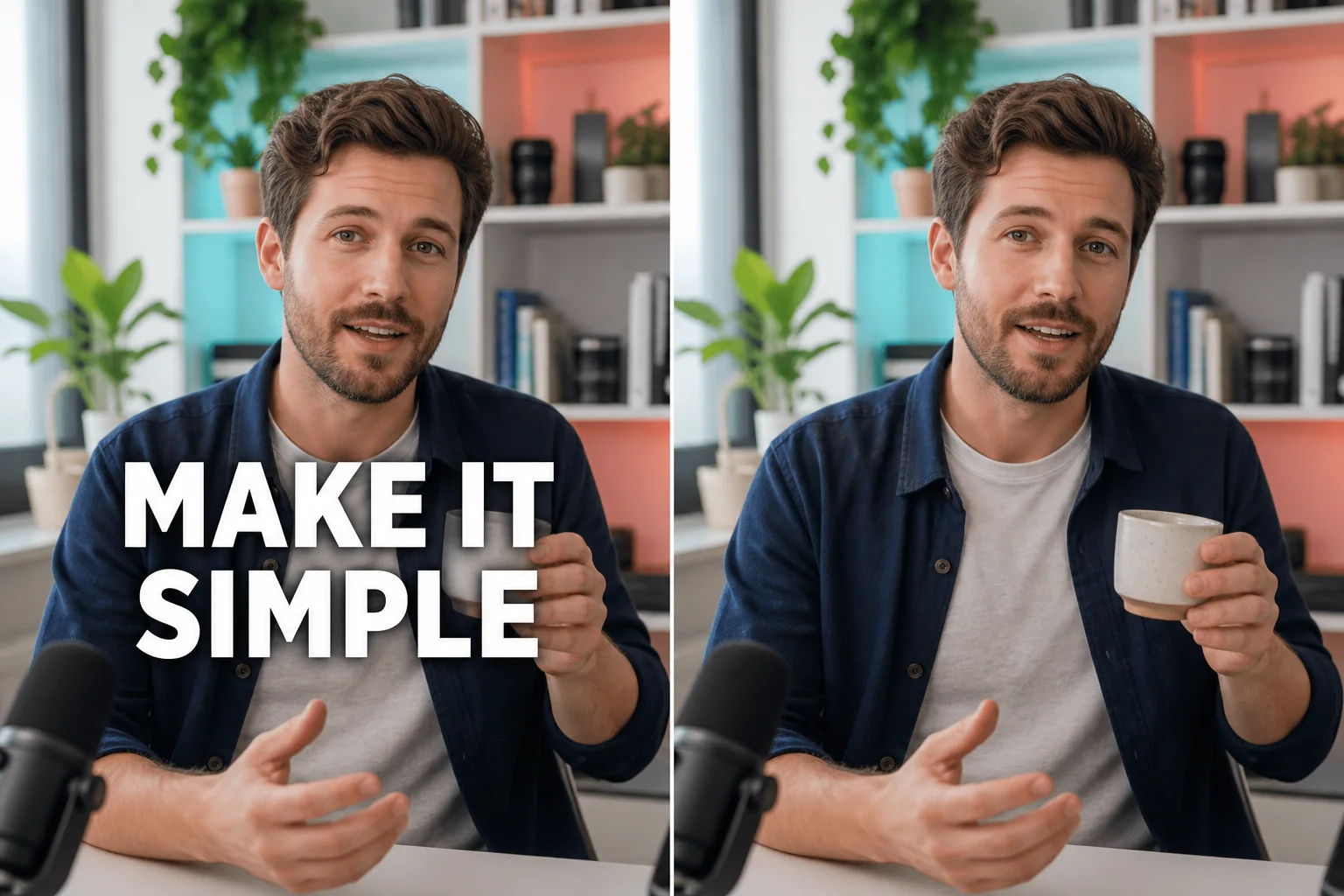
Burned-in subtitles stay visible because their pixels were encoded into every frame. Use the workspace to remove text from video only after confirming that the words are not a separate caption track you can disable. Mark a close boundary around the line, include a scene with changing color, and play the text remover video result at normal speed to check the subject and background below the former caption.

Remove an Offer Label Without Cropping the Composition

Remove an Offer Label Without Cropping the Composition

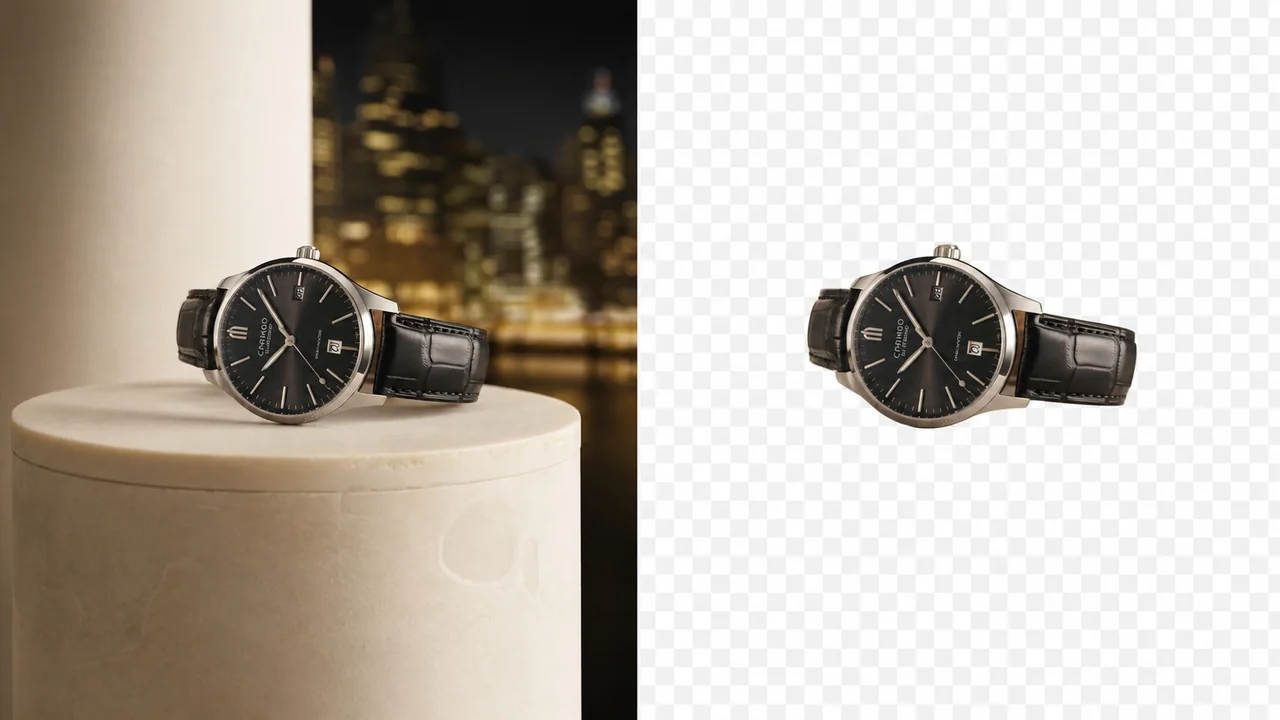
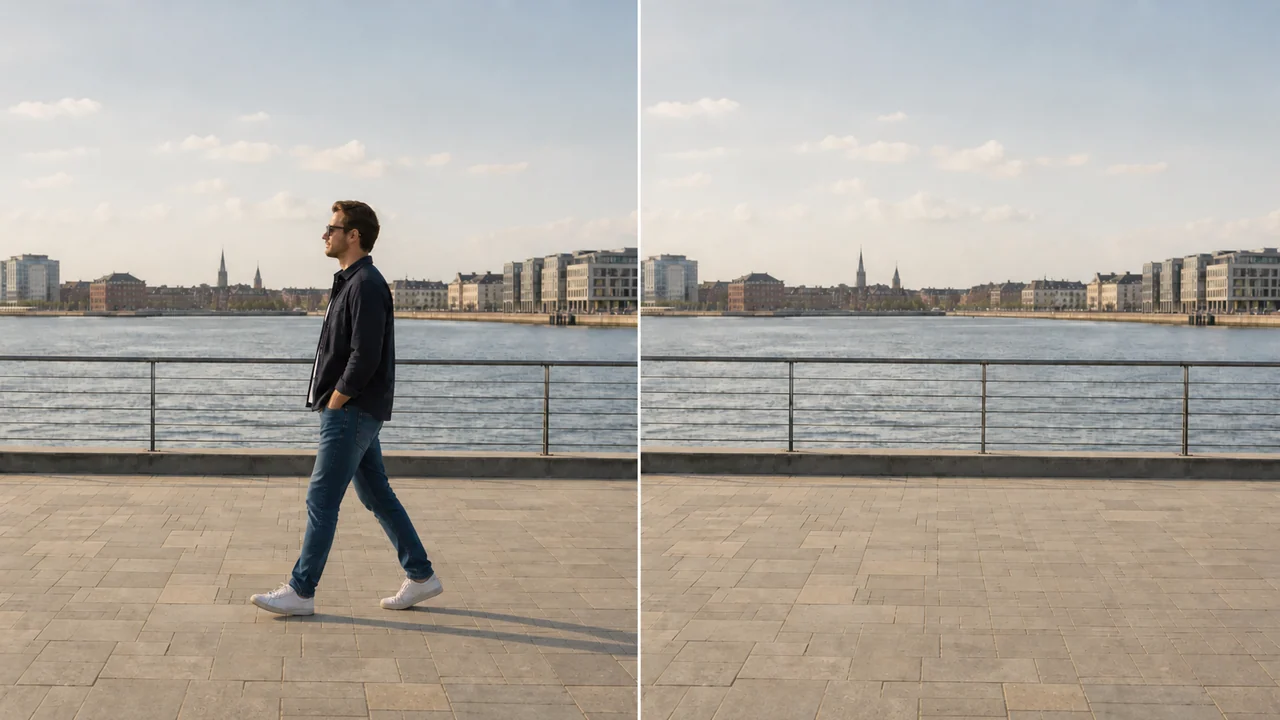
A sale message, lower-third label, or temporary callout can cover useful scenery near the edge of a shot. A text remover from video workflow lets you preserve the original framing while testing a targeted repair. Select the smallest useful region, remove text from video during a representative segment, and compare glass, reflections, straight lines, and moving texture before keeping the new clip.

Stress-Test a Wider Field of Repeated Words

Stress-Test a Wider Field of Repeated Words

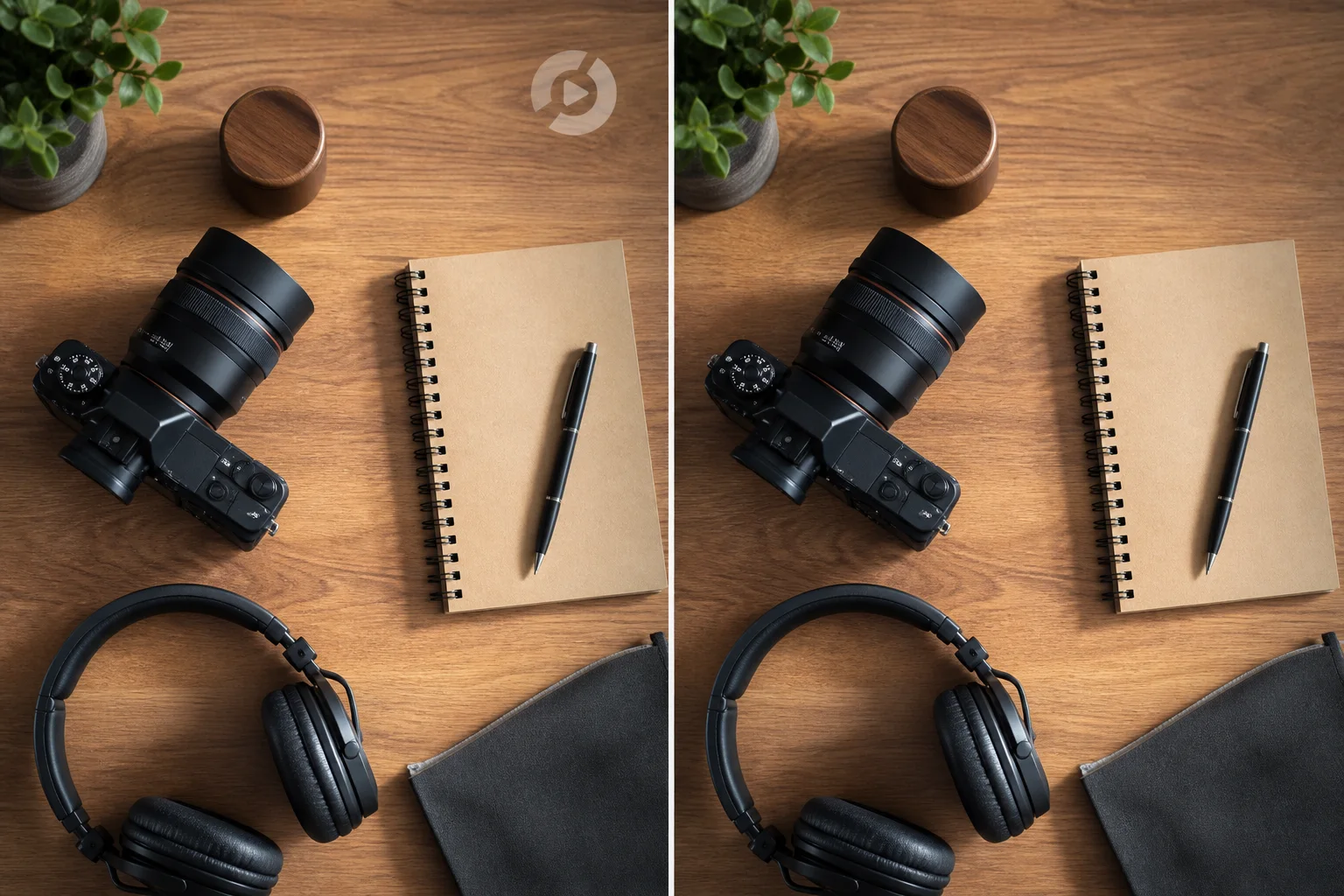
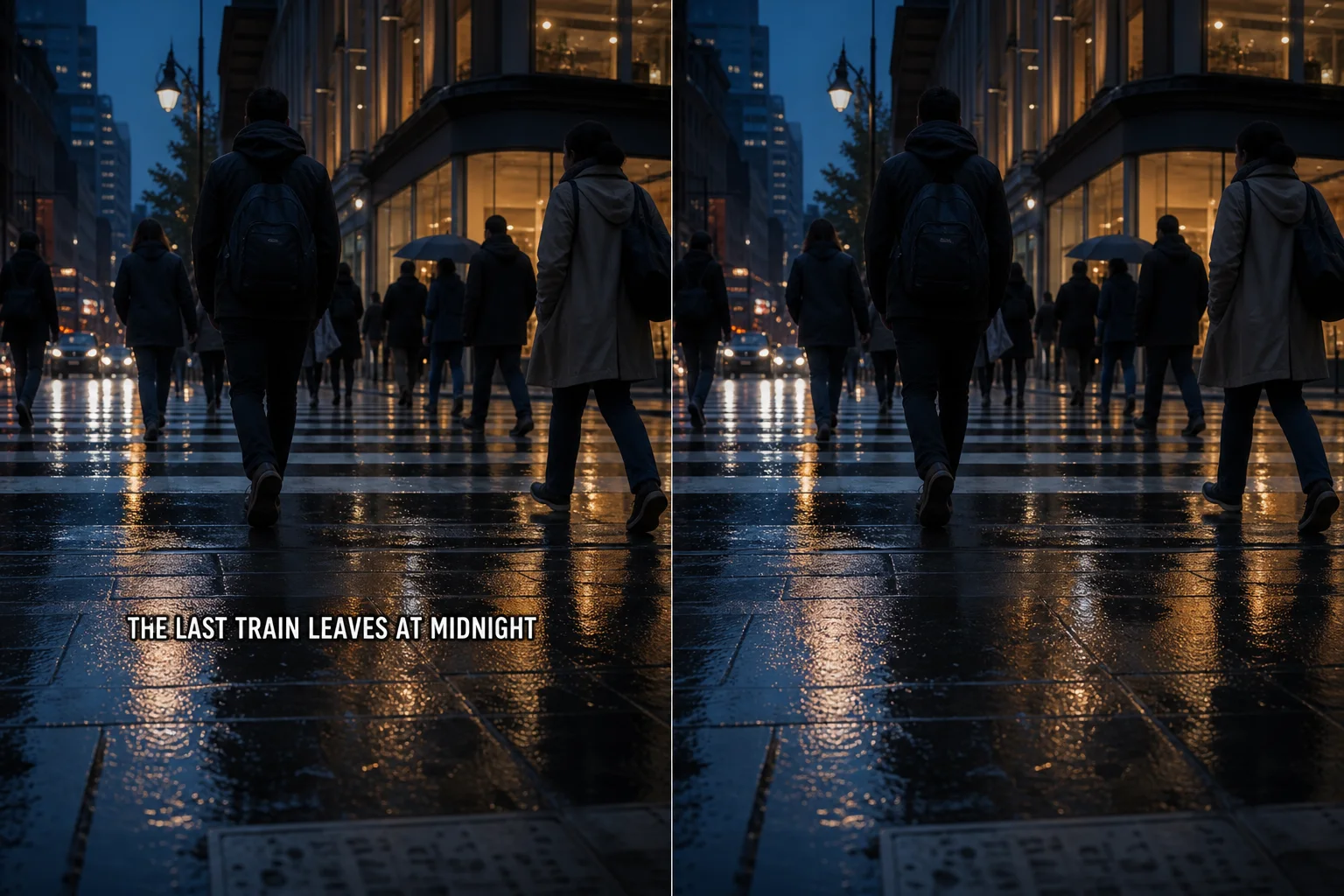
Repeated words demand more reconstruction than one compact label, especially when they cross products, faces, fabric, or detailed scenery. Before you remove text from video at full length, choose a difficult preview and compare several positions. A text remover video should remain believable through cuts and camera movement, but it cannot reveal exact pixels that an opaque word completely replaced in the recorded source.

Controls That Help Remove Text From Video Carefully

A useful text remover from video process combines a precise region, a revealing sample, matched playback, and a final rights check instead of treating every overlay as the same repair.

Define a Precise Text Region

Manual Paint lets you identify the visible words without replacing unrelated parts of the frame. Keep the selection close enough to protect faces, labels, shadows, and fine edges, while leaving room for outlines or glow around the letters. A smaller mask gives the text remover more surrounding evidence and makes the repair easier to compare.

Compare Manual and Automatic Removal

Auto Remove can be a practical first attempt when the overlay is easy to detect, while Manual Paint gives direct control over the affected area. Test both modes on the same video section when possible. Keep the method that removes the intended words without changing picture detail that should remain.

Start With a Representative Segment

Choose a preview that includes the complete text, meaningful movement, scene changes, and the most detailed covered background. Do not remove text from video using only a blank or static moment as proof. A demanding sample exposes unstable texture before a longer processing job repeats it through the whole file.

Inspect Motion Consistency

Play the text remover video at normal speed, then pause around cuts and fast movement. Watch for shimmer, frozen patches, duplicated patterns, or color that no longer follows the scene. The best repair is not the sharpest still; it is the least distracting result across consecutive frames.

Protect the Source Signal

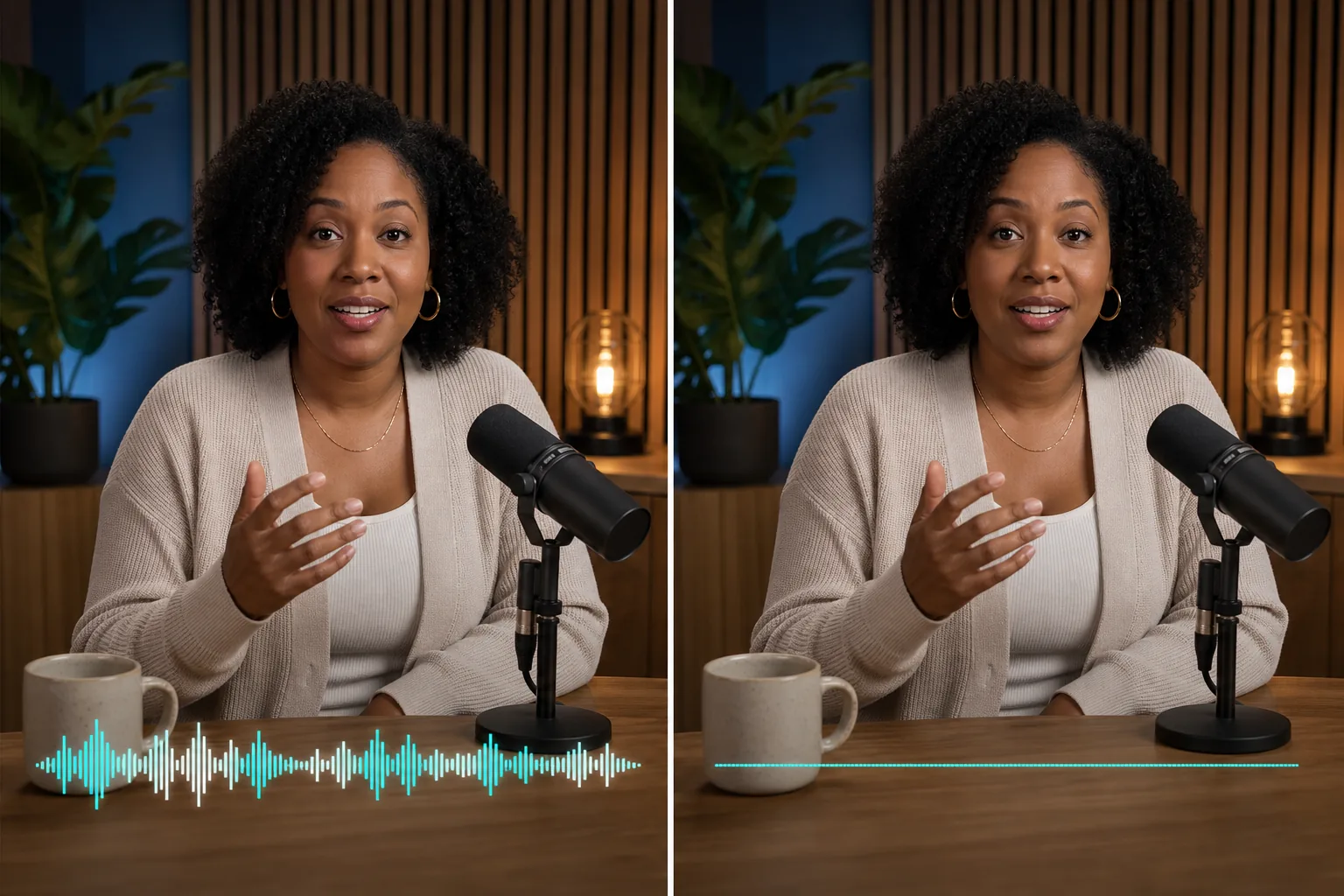
Begin with the earliest clear copy available. Low resolution, repeated compression, blur, and clipped highlights reduce the context needed to rebuild a covered region. Keep the original video beside every candidate export so you can revise the mask or mode without processing an already softened result again.

Confirm Permission Before Processing

Only remove words from footage you own or are allowed to edit. A text remover from video tool does not grant rights to another creator’s clip, broadcast, logo, paid media, or private recording. Keep client approval, licenses, and privacy requirements attached to the source and final delivery.

Four-stage repair check

How to Remove Text From Video and Review the Result

Prepare the best source, identify the encoded words, process a revealing preview, and approve the complete video only after the repaired pixels remain stable through playback.

1

Upload an Authorized Source

Choose a supported video that opens correctly and shows the unwanted text during the section you plan to test. Confirm that the words are burned into the image rather than supplied by a separate subtitle track. Use the cleanest copy available and retain it as the comparison master.

2

Choose a Mode and Mark the Words

Use Manual Paint for a controlled mask or try Auto Remove when detection suits the overlay. Cover the visible letters, outline, and shadow without extending into unrelated subjects. If the text moves, test every important position instead of assuming one fixed region follows it automatically.

3

Process and Compare a Preview

Run the text remover from video preview on the hardest representative section. Play source and result at the same size and speed, then inspect the former text boundary during motion, cuts, lighting changes, reflections, and detailed backgrounds. Refine the mask or mode when the repair draws attention.

4

Review the Full Export Before Download

Continue only when the preview meets your quality bar and the displayed full-video requirements fit the file. Reopen the finished result, verify duration and audio, and watch from beginning to end. Keep the original until the text remover video has passed editorial, technical, and permission review.

Remove Text From Video Questions Before You Export

Use these answers to identify the right source, choose a removal method, and decide whether the repaired clip is ready for another edit.

Remove Text From Video With a Focused Preview

Choose the hardest authorized segment, mark only the unwanted words, and keep the text remover video result only after the repaired area remains natural through motion.