





Remove Captions From Video for Free

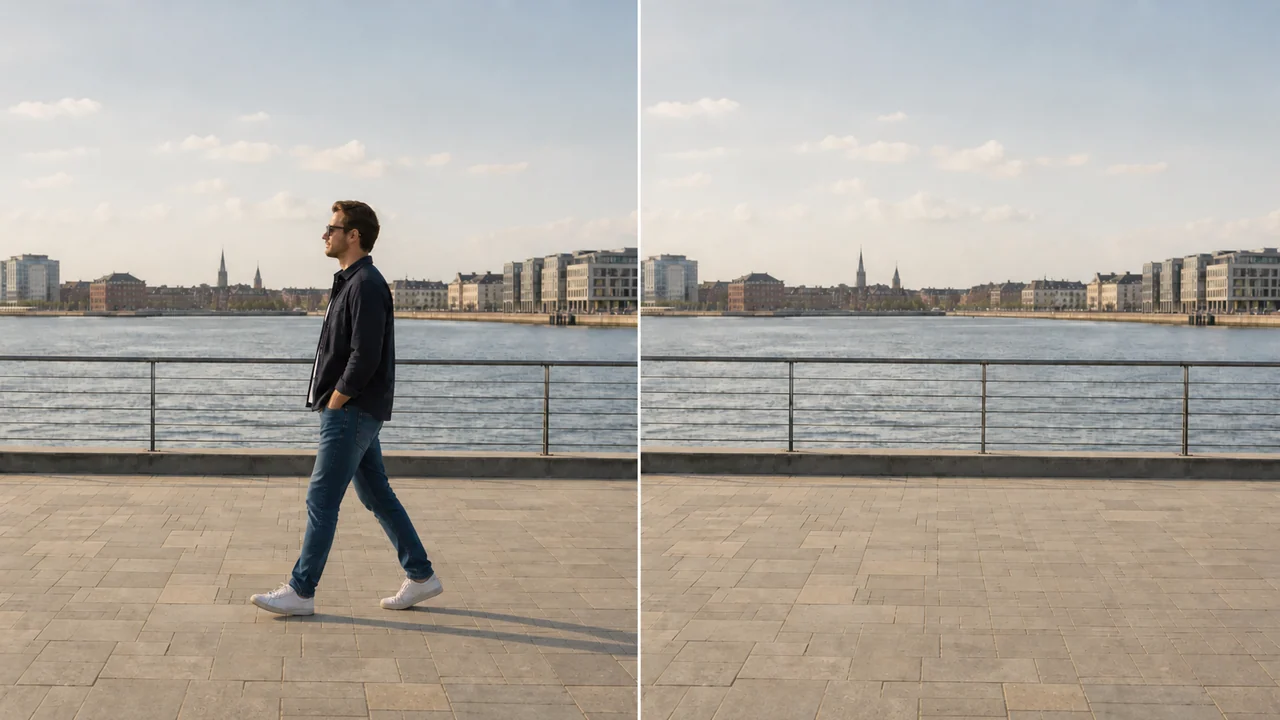
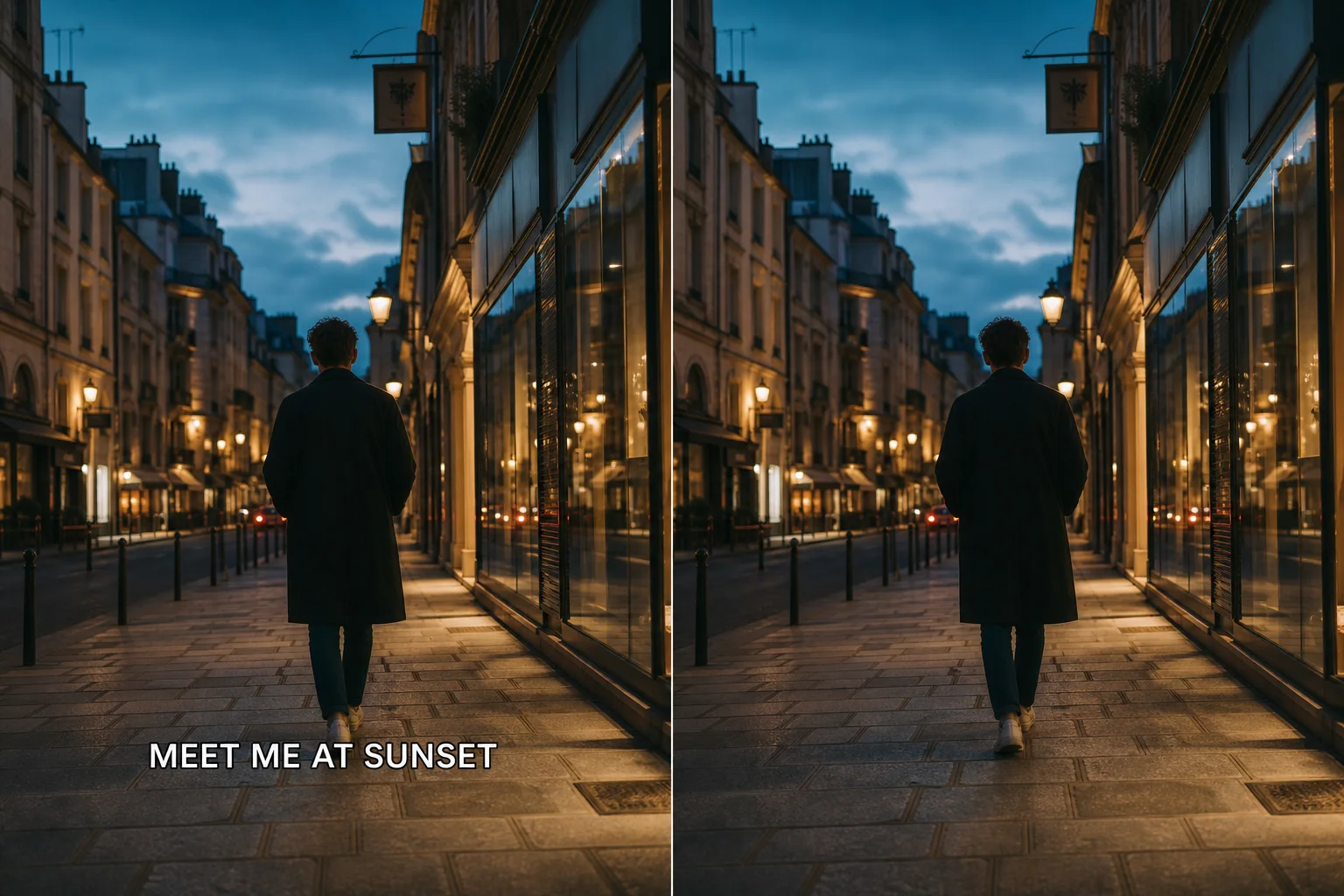
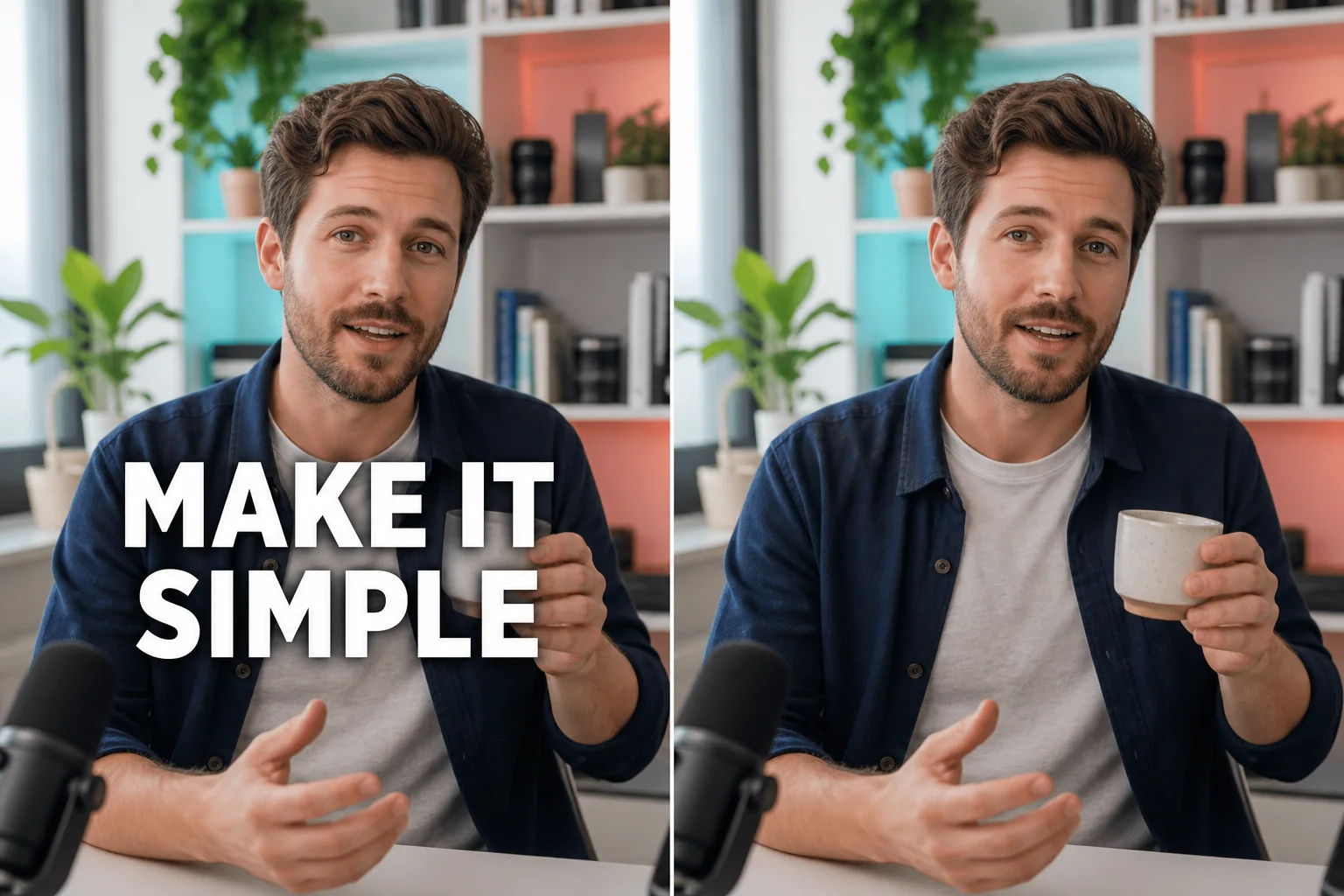
Remove captions from video with a free preview and no login. Mark burned-in subtitle pixels, compare the repaired area through motion, and review the result before full export.

Drag and drop a video here, or choose a file to open the editor.

MP4MOVAVIMKVWEBM

Maximum file size: 100MB

Test Caption Cleanup Where the Picture Changes Most

Choose a short section that exposes motion, cuts, and covered detail so the repaired line can be judged during playback rather than on one still frame.

Separate Encoded Words From a Subtitle Track

Separate Encoded Words From a Subtitle Track

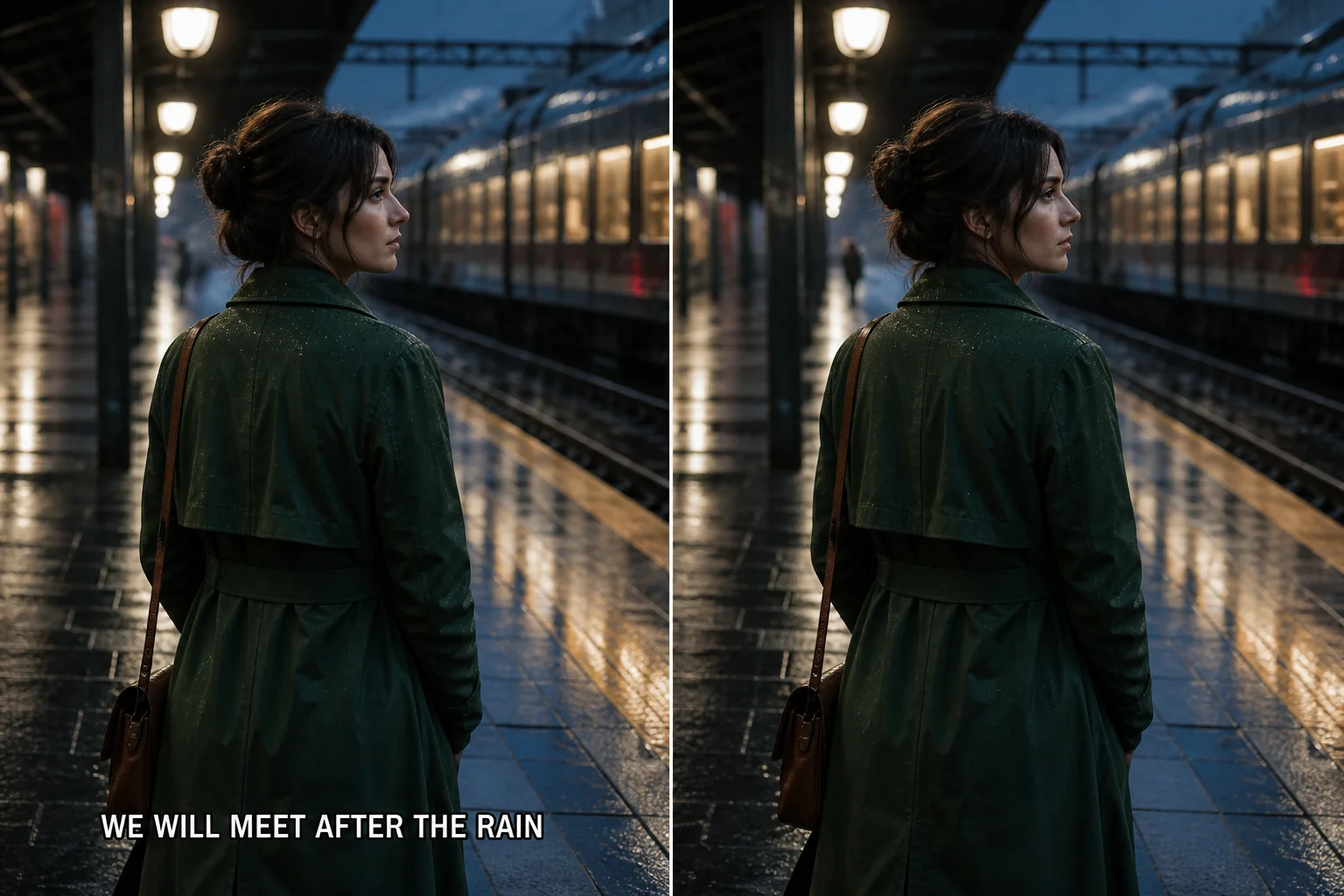
First check whether the player offers a caption switch. If the words remain after every track is disabled, they are probably encoded into the picture. Use a close selection to remove captions from video footage, include the full subtitle change, and compare the lower frame while people, clothing, and scenery move behind the former line.

Inspect Fast Words Over Faces and Products

Inspect Fast Words Over Faces and Products

Large social captions may change every few seconds and cross faces, hands, products, or textured backgrounds. A video captions remover preview should cover the busiest change rather than an empty pause. Remove one representative sequence, replay it at delivery size, and reject a mask that softens nearby subjects or leaves fragments of an outline.

Cover Every Line Without Expanding the Repair

Cover Every Line Without Expanding the Repair

Two-line subtitles and translated captions can occupy a wide band while the scene cuts underneath them. Before you remove captions from video at full length, test the widest line and the hardest cut. Remove only the encoded words and their outline, then confirm that grain, gradients, objects, and motion remain consistent across the complete caption region.

Controls to Remove Captions From Video Carefully

A useful video captions remover workflow combines a precise region, a revealing preview, matched playback, and a final review of the complete authorized file.

Confirm the Caption Is Part of the Picture

Disable available CC or subtitle tracks before changing pixels. If the words disappear, remove or replace that track instead. Use visual repair only when captions remain burned into every frame, because a pixel mask cannot edit timing, language, or typography stored in a separate subtitle file.

Paint a Close Caption Boundary

Manual Paint helps remove captions from video without replacing the entire lower band. Include letters, outline, and shadow while protecting faces, hands, product labels, and frame edges. Remove excess selection before previewing; surrounding pixels provide the evidence used to rebuild the covered area.

Compare Manual and Automatic Modes

Auto Remove offers a quick first attempt when the caption is visually distinct. Manual Paint gives direct control near detailed subjects. Run both on the same section when practical, then keep the mode that removes the encoded line with fewer changes to genuine texture, color, and movement.

Review Caption Changes in Motion

A video captions remover can look convincing while paused yet shimmer when the words change. Play the source and result at matching size and speed. Remove candidates that freeze texture, pulse at subtitle transitions, repeat background patterns, or leave edges when a new line appears.

Begin With the Clearest Source

Repeated compression, blur, low resolution, and crushed shadows reduce useful picture evidence. Keep the earliest authorized source beside every preview. Remove failed drafts rather than processing them again, because another encode can soften the frame before the caption repair is evaluated.

Approve the Complete Download

Reopen the finished file and check its beginning, longest dialogue, scene cuts, and ending. Confirm audio, duration, orientation, and synchronization. Remove temporary versions only after the chosen result preserves delivery timing and the former caption area stays less distracting than the encoded words.

Four-stage caption review

How to Remove Captions From Video and Check the Repair

Confirm the subtitle type, mark the encoded line, compare a difficult free preview, and continue only when the repair remains stable through motion.

1

Upload an Authorized Source

Choose a supported file that plays correctly and contains a representative caption change. Keep the clean original for comparison. Remove broken conversions from consideration before masking, because missing frames or damaged playback make timing and picture review unreliable.

2

Check Tracks and Mark the Pixels

Disable subtitle tracks first. When the words remain visible, choose Manual Paint or Auto Remove and identify the burned-in region. Remove unnecessary mask width, but include outlines and shadows that belong to the caption so fragments do not survive the first pass.

3

Run a Free Motion Preview

Use the no-login preview on an eligible sample and include the hardest background or line change. A video captions remover preview is evidence for choosing the mask and mode. Remove a weak preview, refine one variable, and compare again at the same timestamps.

4

Review Before Full Processing

Continue only after reading the displayed sign-in, credit, size, and duration requirements. To remove captions from video across the full file, inspect every caption interval after processing and remove rejected exports from delivery rather than assuming one preview represents every scene.

Remove Captions From Video Questions

Use these answers to identify burned-in subtitles, prepare a useful preview, and decide whether the repaired file is ready for delivery.

Remove Captions From Video With a Focused Preview

Return to the workspace, choose the hardest authorized caption change, and remove the line only after the mask and motion review support a cleaner result.