






Remove Subtitles From Video With a Focused Preview

Remove subtitles from video with a free preview and no login. Mark an encoded subtitle region, compare repaired motion, and inspect the result before export.

Drag and drop a video here, or choose a file to open the editor.

MP4MOVAVIMKVWEBM

Maximum file size: 100MB

Inspect Subtitle Removal Across Different Video Scenes

Test the line where motion and covered detail are hardest to reconstruct, then judge the repaired area during playback rather than from a single frame.

Check a Burned-In Dialogue Line Over Moving Scenery

Check a Burned-In Dialogue Line Over Moving Scenery

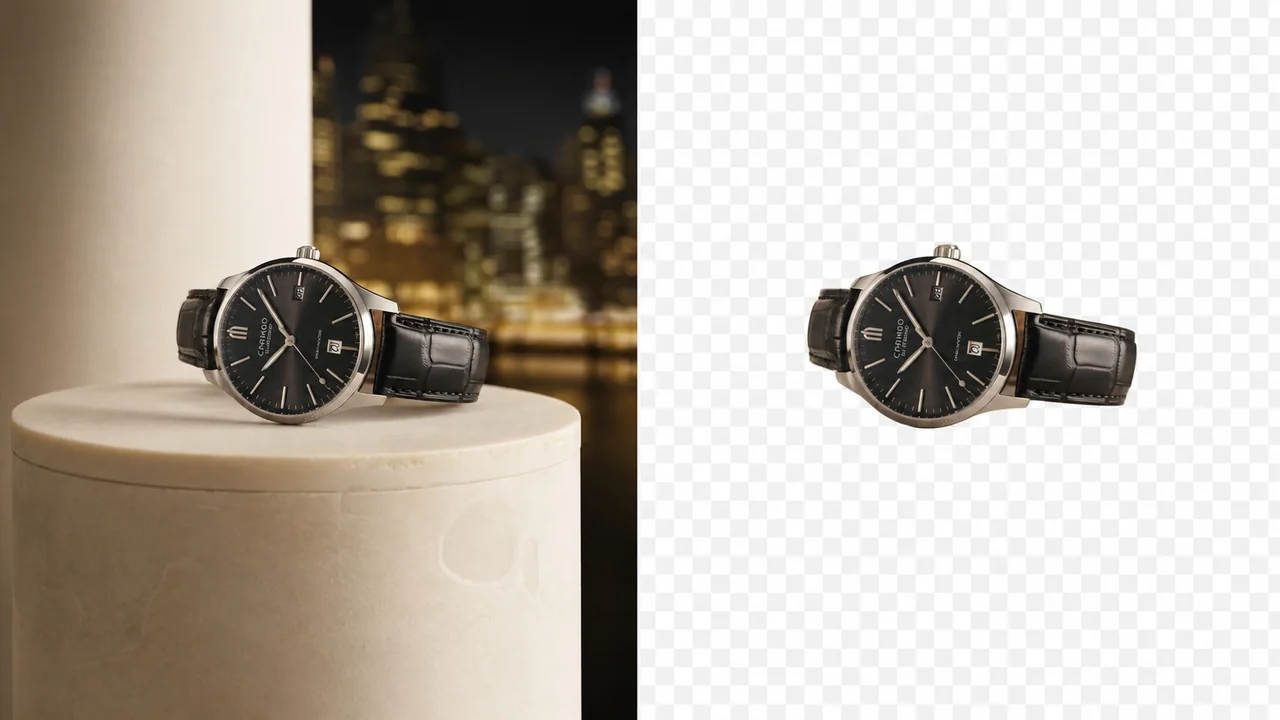
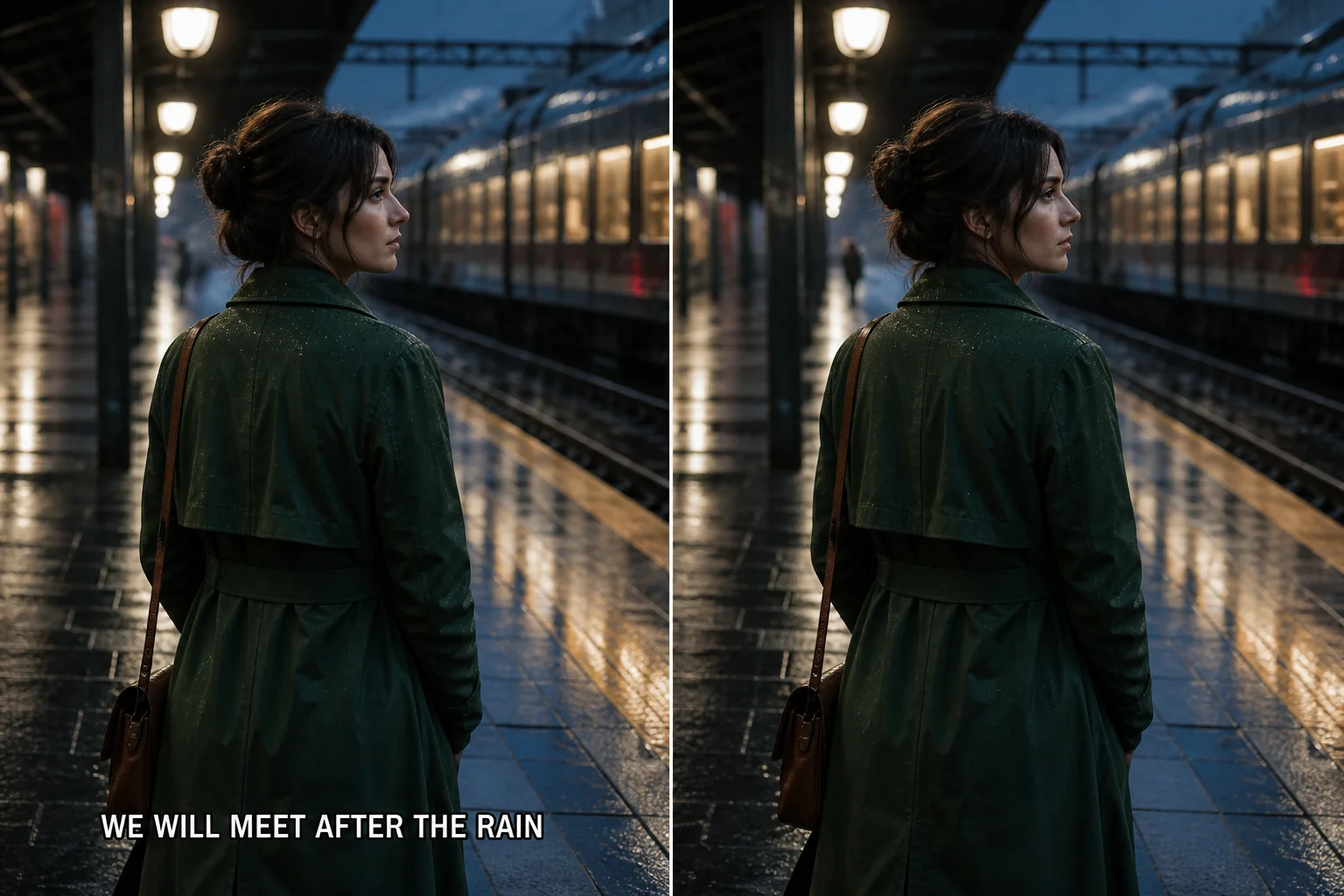
Film and interview subtitles often sit over clothing, streets, reflections, or camera movement. To remove subtitles from video responsibly, select a complete spoken line and include its outline without replacing the whole lower frame. Compare the same timestamps and remove any result that bends background edges or leaves bright letter fragments.

Protect a Speaker While Clearing Large On-Screen Words

Protect a Speaker While Clearing Large On-Screen Words

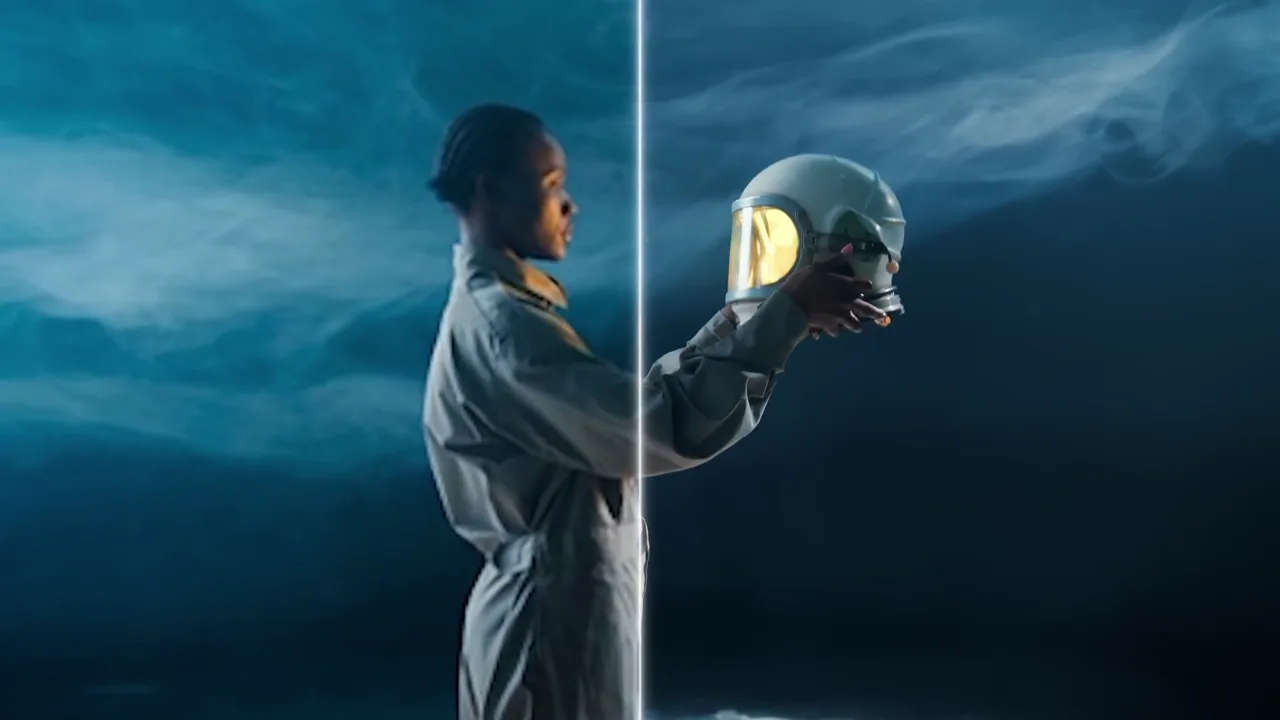
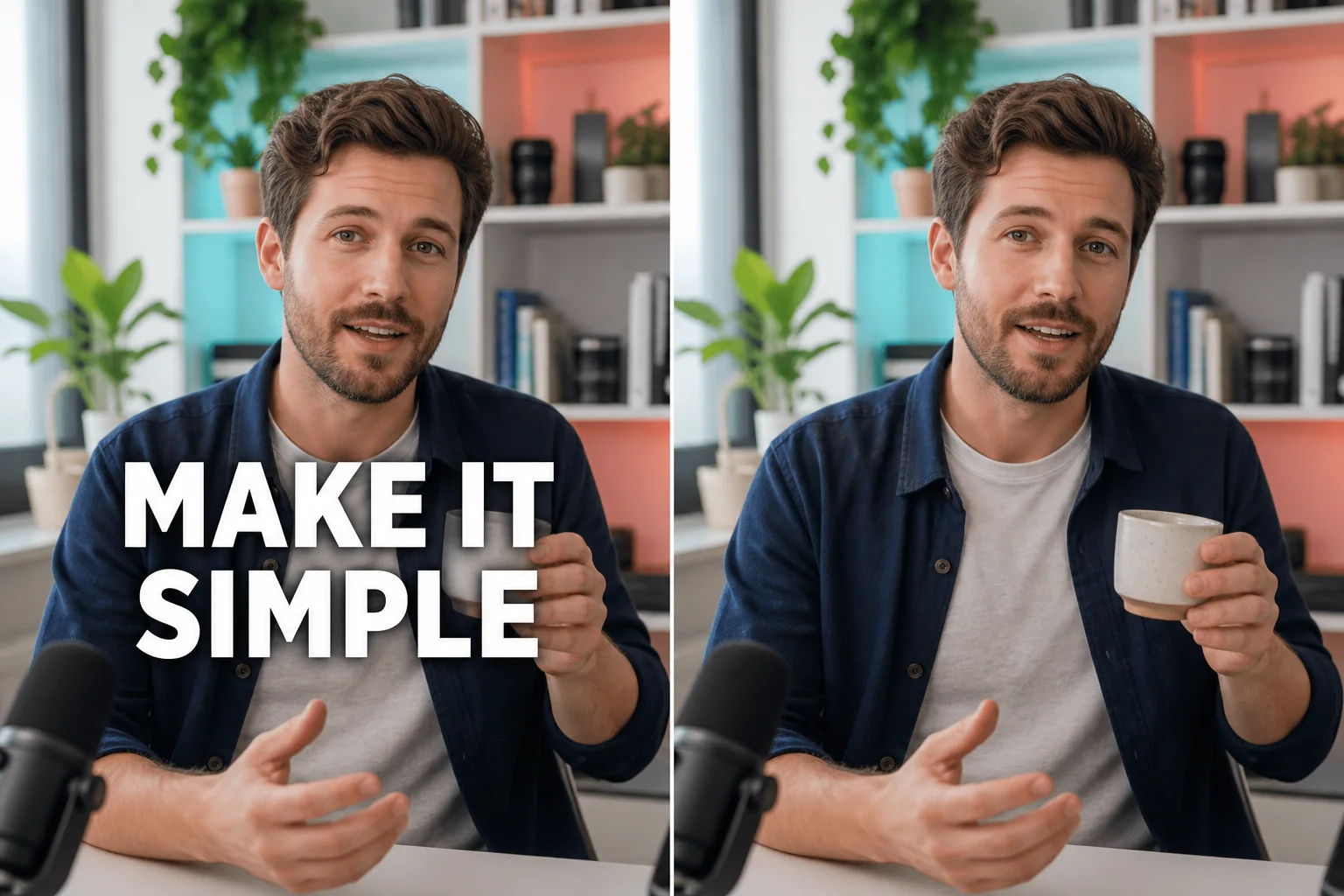
Large subtitle styling can cross a face, hand, microphone, or product. A video subtitles remover test should use the busiest overlap, not an empty pause. Keep the region close to the encoded words, remove excess mask area, and reject a candidate that invents facial detail or softens the subject beyond the former subtitle.

Review Wide Subtitle Blocks Through a Scene Change

Review Wide Subtitle Blocks Through a Scene Change

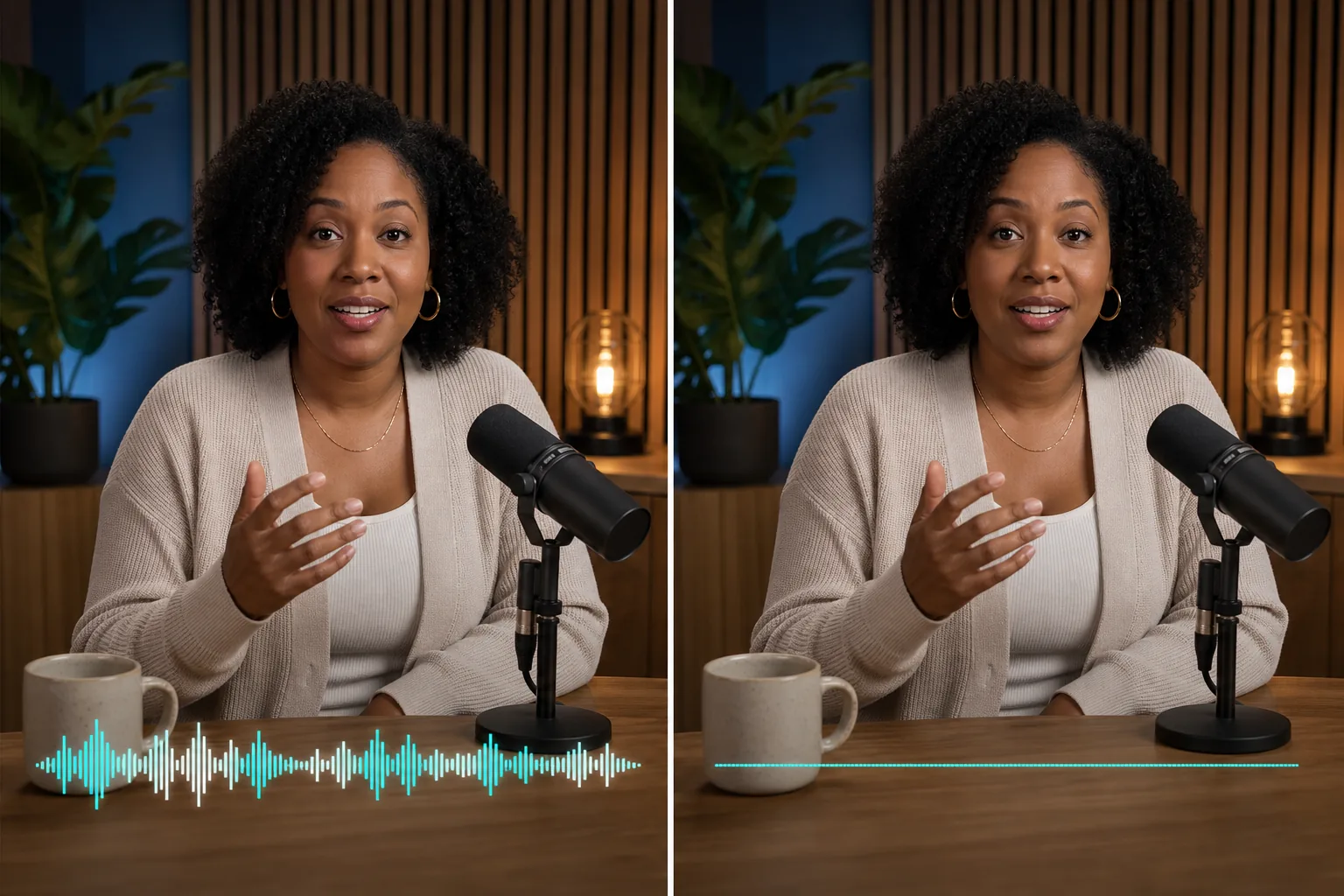
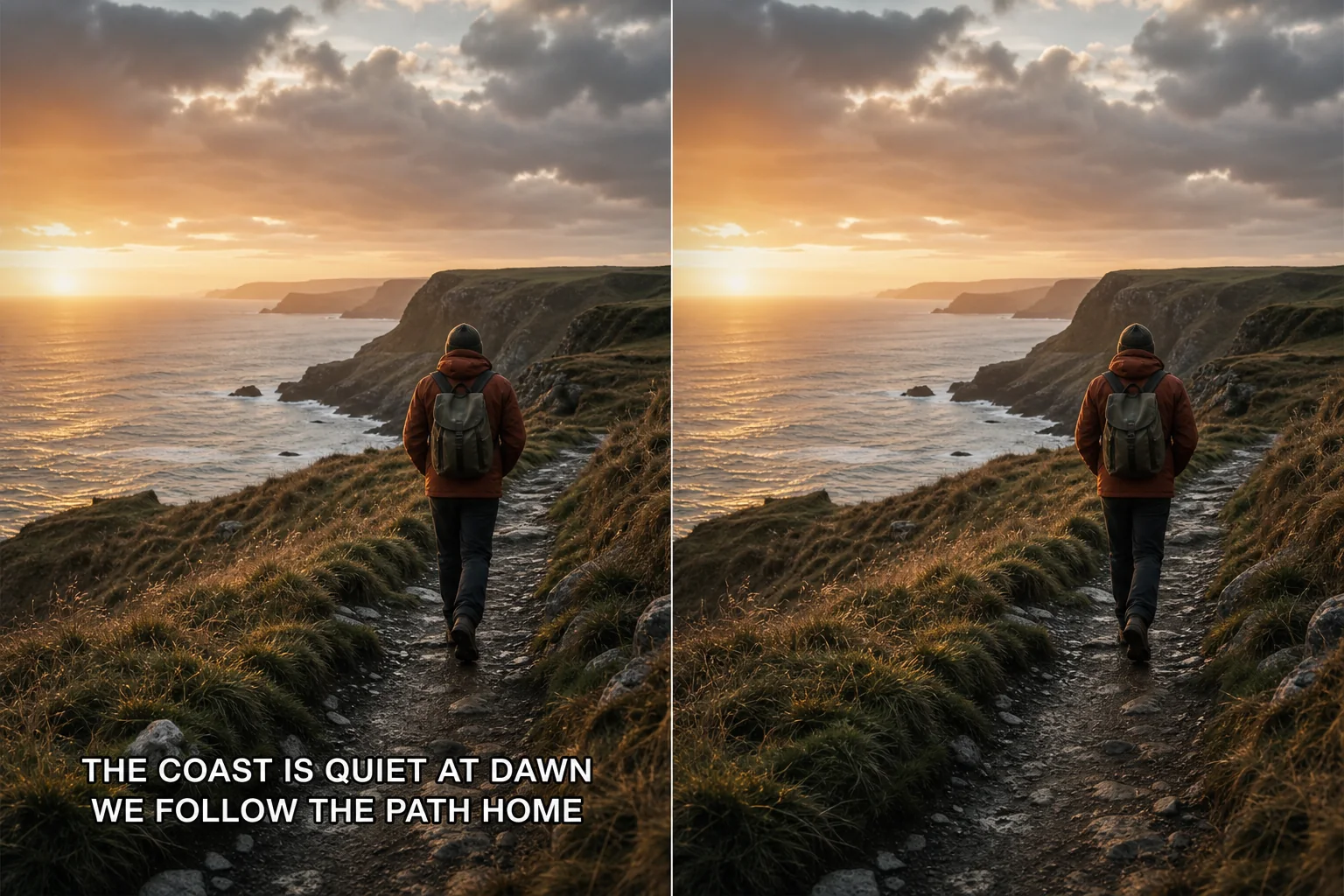
Translated dialogue may use two lines, a dark stroke, and a wide lower-frame footprint. Before you remove subtitles from video at full length, test the widest block across a difficult cut. Remove only the visible subtitle treatment, then watch gradients, grain, landscape detail, and motion for pulsing or repeated texture.

Controls for a Careful Video Subtitles Remover Workflow

A useful result begins by identifying encoded text, choosing a precise region, and checking every subtitle transition in the authorized video.

Identify Pixels Instead of a Subtitle Track

Turn off available subtitle or CC tracks before changing the picture. If the words disappear, remove that track in the player or editor. Pixel repair is for subtitles that remain visible because they were encoded into every affected video frame; it cannot edit language, timing, or typography stored in a separate file.

Mark the Smallest Useful Subtitle Region

Manual Paint gives direct control near faces, products, borders, and textured scenery. Include the letters and their visible stroke, then remove unnecessary mask width. A focused selection preserves more surrounding evidence and gives the repair less unrelated video detail to replace.

Compare Manual Paint and Auto Remove

Auto Remove can be tested when burned-in subtitles are visually distinct, while Manual Paint is safer when boundaries need deliberate control. Process the same short interval with both modes. Remove the weaker candidate and keep the method that changes the least genuine texture during normal-speed playback.

Follow Every Subtitle Transition

Words may change on cuts, fades, camera moves, or lighting shifts. A paused result can hide shimmer. Play the source and repair at matched size and speed, and remove versions that freeze grain, duplicate patterns, pulse between lines, or leave pieces of the previous subtitle.

Start With the Best Source Video

Low resolution, blur, blocked shadows, and repeated compression reduce the nearby information available for reconstruction. Use the earliest authorized video, verify that it seeks correctly, and remove damaged conversions from the test set before judging subtitle cleanup.

Keep Authorization and Context

Only remove subtitles from video you own or have permission to modify. Subtitle removal does not grant rights to a film, broadcast, course, private recording, or client asset. Preserve the original, approval record, and editorial context until the final delivery has passed review.

Four-stage subtitle check

How to Remove Subtitles From Video Without Guessing at Quality

Confirm the subtitle type, mark a focused region, compare a difficult sample, and approve the complete export only after motion and audio remain consistent.

1

Check Whether the Subtitle Can Be Disabled

Open the source in a player or editor and turn off every available subtitle track. When the words disappear, remove or replace the track instead of altering pixels. Continue only when the subtitle remains burned into the image.

2

Upload the Source and Mark the Encoded Words

Choose a supported authorized video and keep the original nearby. Use Manual Paint for direct boundaries or test Auto Remove on a distinct overlay. Remove excess selection while retaining outlines and shadows that should disappear.

3

Process a Representative Free Sample

Choose the hardest useful line, including motion before and after its change. Compare the original and repaired interval at matched timestamps. Remove a weak sample, change one variable, and test again instead of assuming an easy scene represents the full video.

4

Review the Complete Result Before Download

After full processing, watch every former subtitle interval and the surrounding frame. Verify audio, duration, synchronization, orientation, and scene cuts. Remove rejected exports from delivery only after one result passes technical, editorial, and permission review.

Remove Subtitles From Video Questions

Use these answers to distinguish subtitle tracks from encoded pixels, select a useful test, and review the repaired result before delivery.

Remove Subtitles From Video With a Focused Test

Choose the hardest authorized subtitle interval, keep the mask close to the encoded words, and approve the result only after the repaired area remains stable in motion.