





Remove Audio From Video Without Changing the Picture

Use the shared video workspace while a dedicated audio control is being prepared. Free preview and no login remain available under the displayed limits.

Drag and drop a video here, or choose a file to open the editor.

MP4MOVAVIMKVWEBM

Maximum file size: 100MB

Plan a Silent Export for Different Video Sound Problems

Treat the soundtrack and picture as separate parts of the file, then review both before replacing the original or publishing a muted copy.

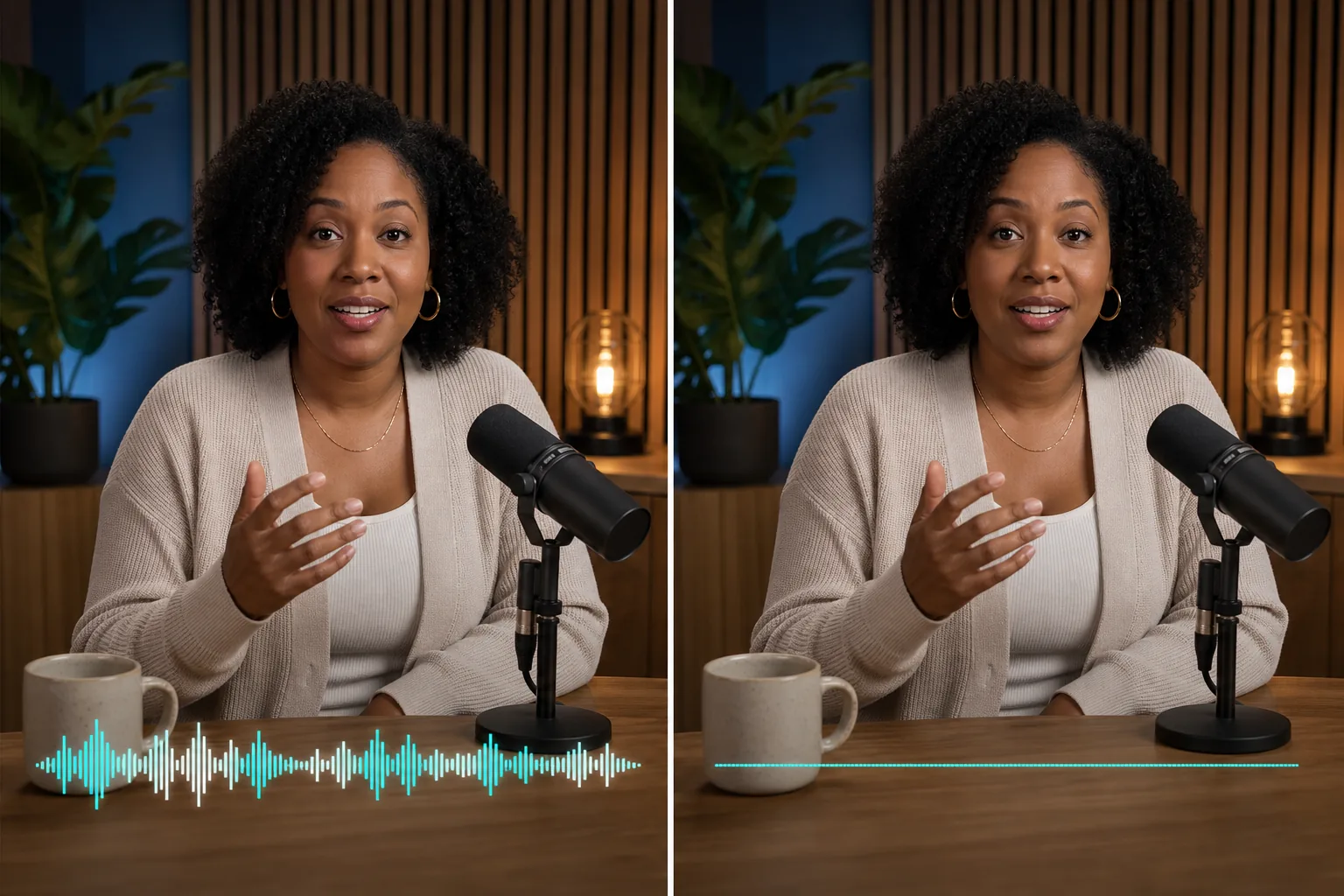
Remove an Interview Track Without Reframing the Speaker

Remove an Interview Track Without Reframing the Speaker

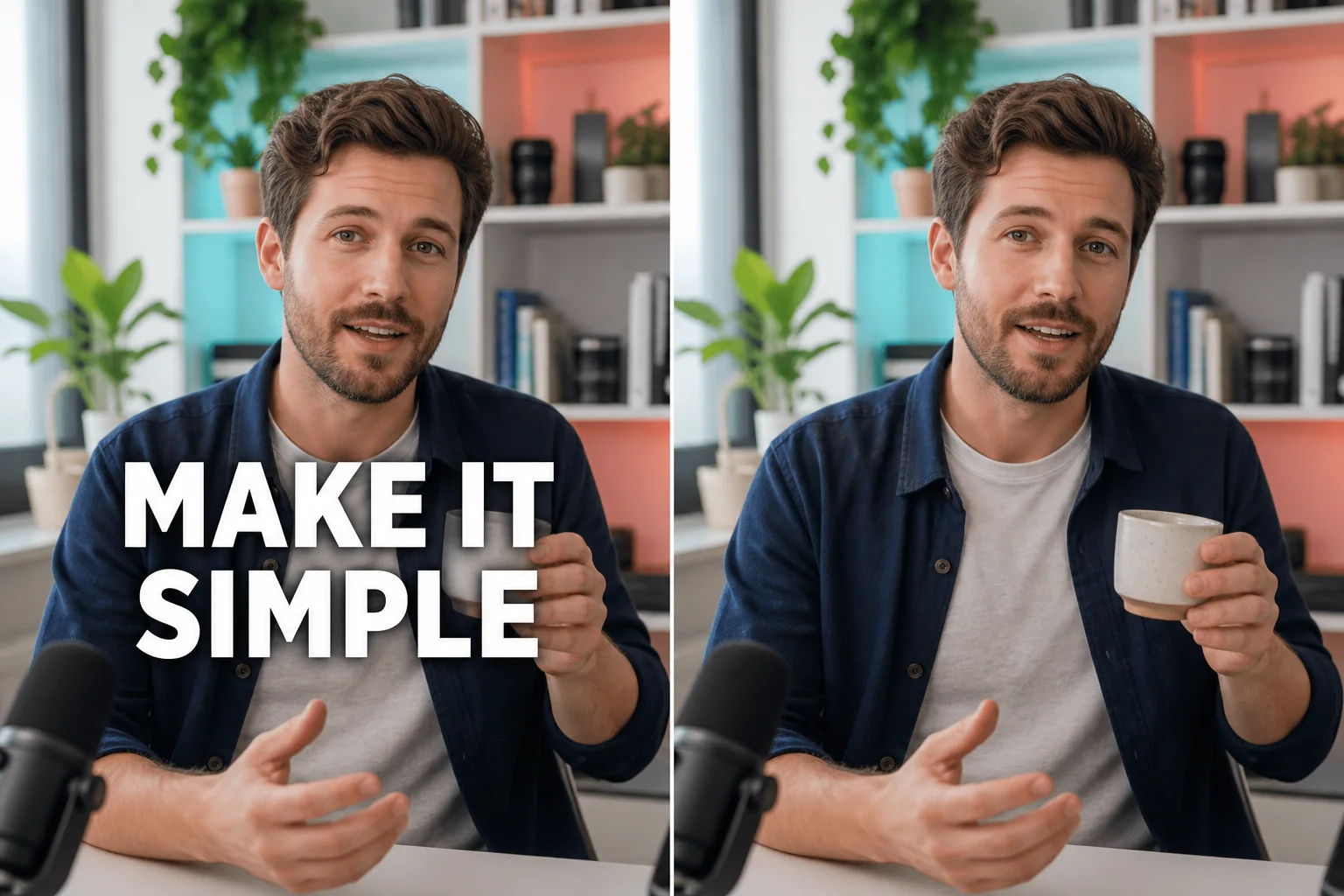
An interview may contain narration, room tone, microphone handling, and speech in one mixed track. A careful plan to remove audio from video starts by preserving the picture and identifying whether every sound should disappear. Keep the original recording, compare the full duration, and remove any silent export from delivery if its timing or visual stream changes unexpectedly.

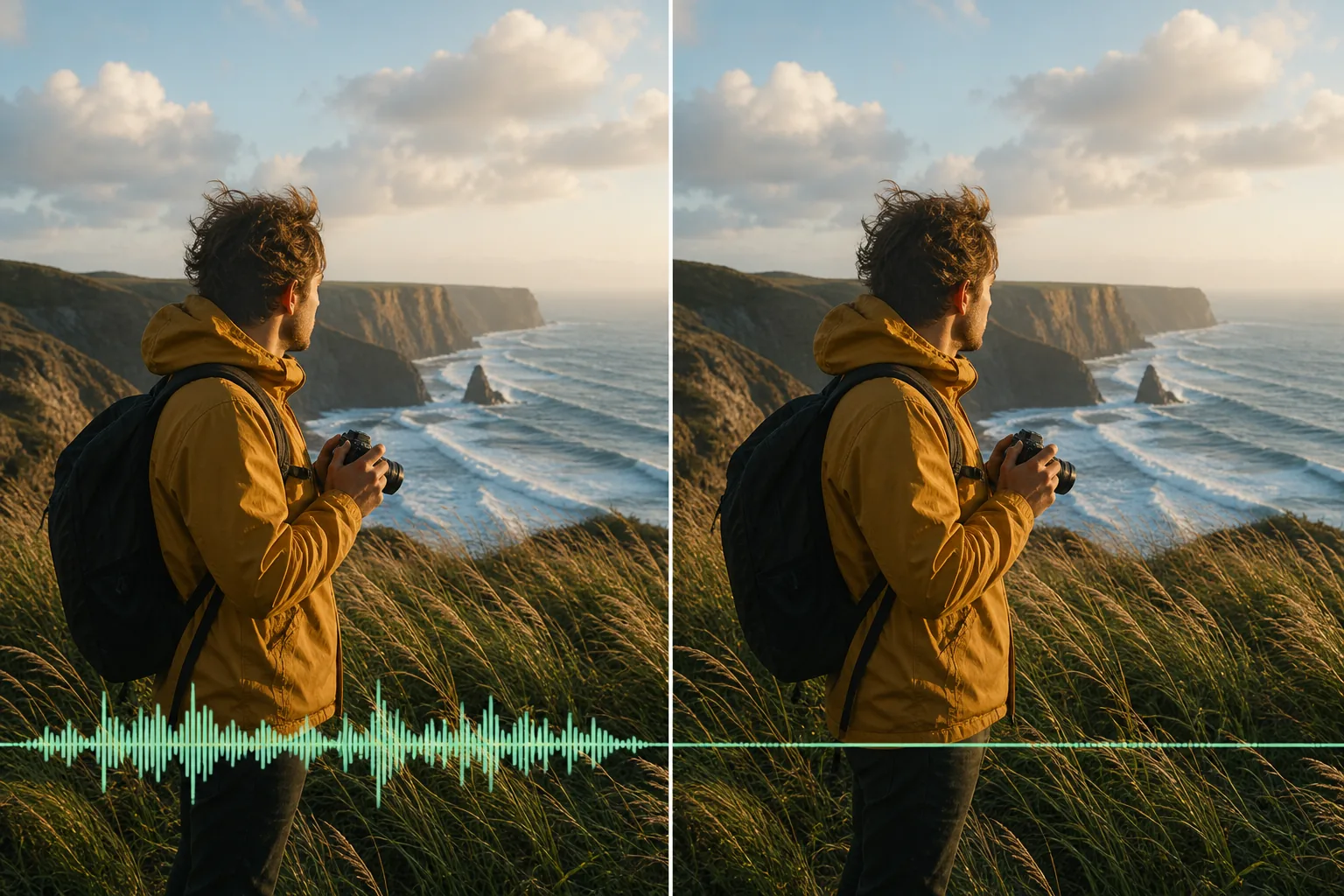
Review Wind, Traffic, and Location Noise as One Track

Review Wind, Traffic, and Location Noise as One Track

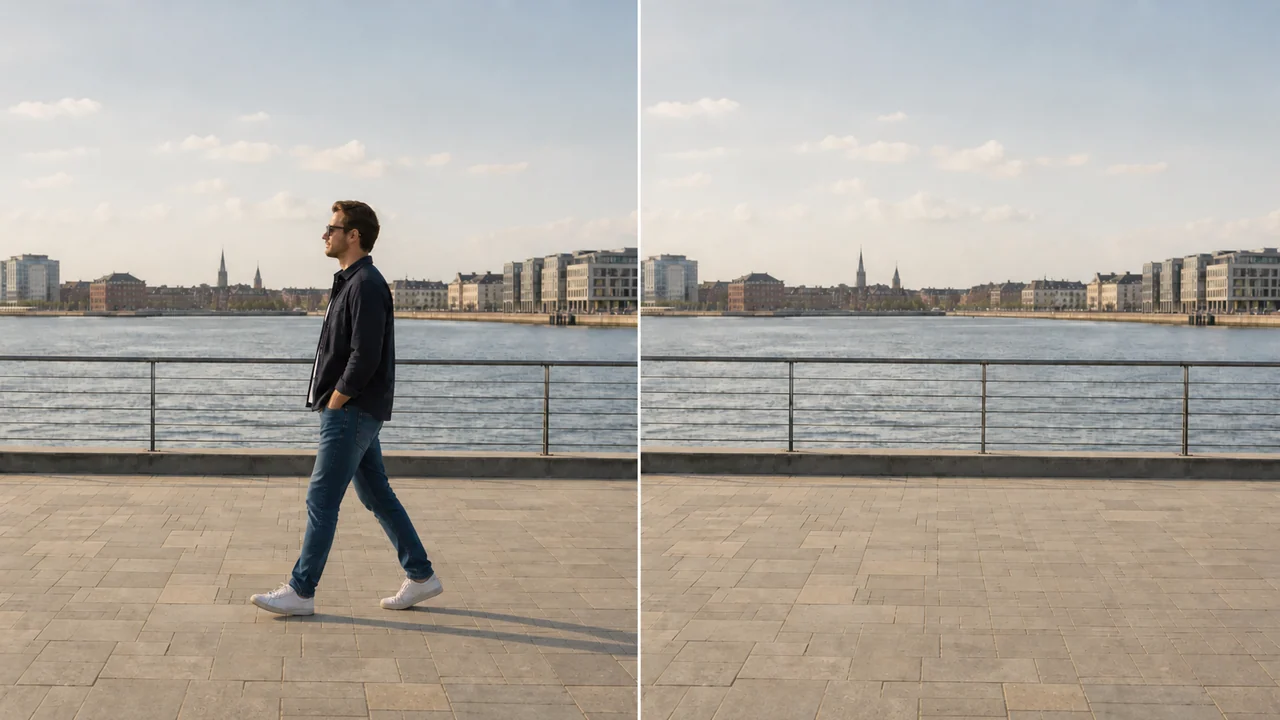
Outdoor footage can combine wind, waves, traffic, voices, and camera noise. If the goal is to remove sound from video completely, confirm that no useful ambience needs to remain. A full mute is different from isolating one source. Remove the soundtrack only in an appropriate editor, then replay cuts and transitions so the silent version still follows the intended visual rhythm.

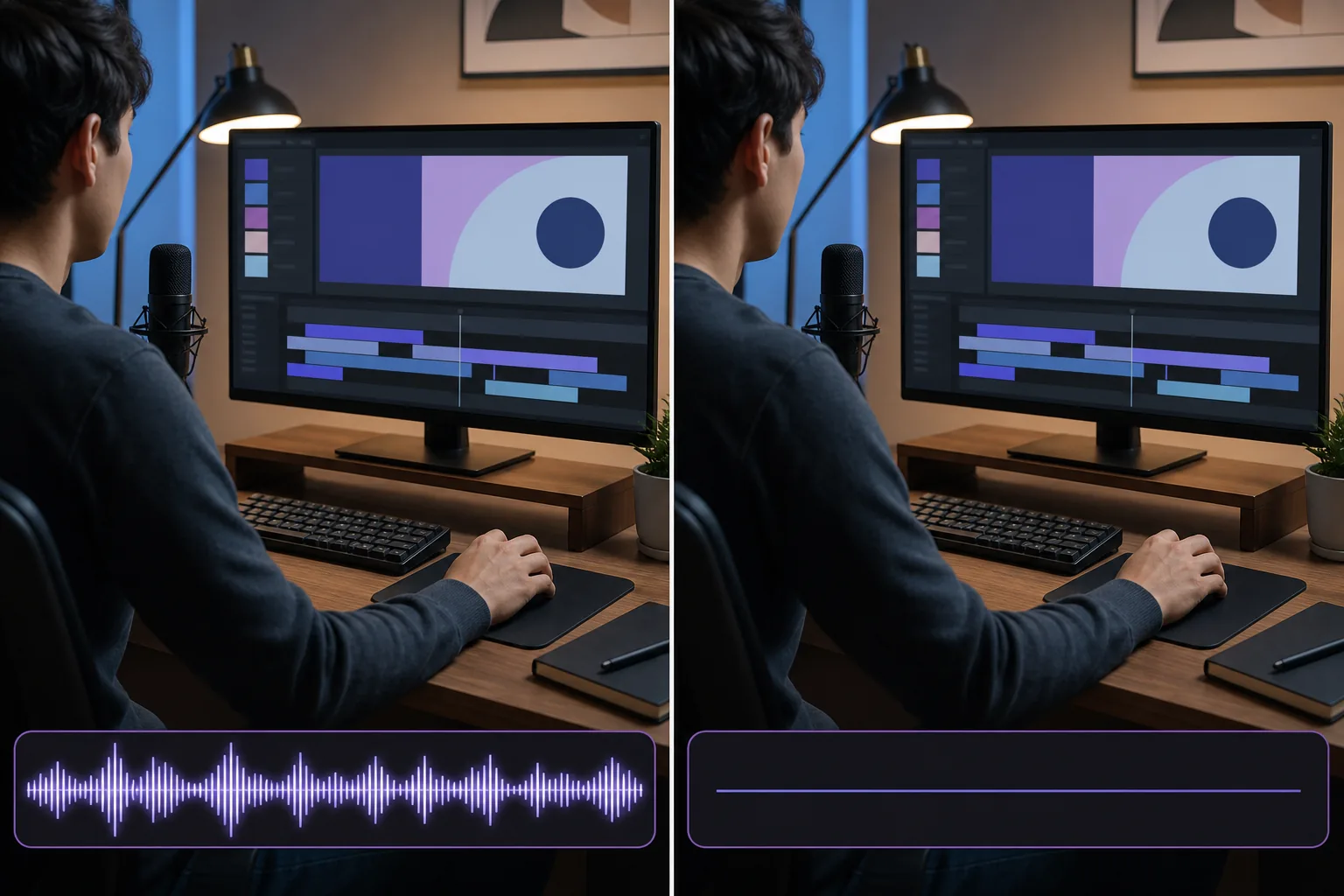
Clear Microphone Narration Before Adding a New Voiceover

Clear Microphone Narration Before Adding a New Voiceover

Tutorials often combine microphone narration, interface alerts, and system sound. Before you remove audio from video, note whether those sources are already mixed or stored as separate tracks. Preserve an editable master, remove only the intended track in suitable software, and verify cursor movement, cuts, captions, and duration before recording replacement narration.

Checks for a Focused Remove Audio From Video Workflow

A reliable silent-video workflow protects the visual stream, identifies track boundaries, and keeps an authorized source available for correction.

Separate the Soundtrack From the Picture

Video containers can hold picture, one or more audio streams, subtitles, and metadata. Muting playback is not the same as deleting a track from an exported file. Inspect the source first, then remove audio only with a tool that can write a new media file and preserve the required video stream.

Choose Complete Silence or Track-Level Control

A simple full mute removes every mapped sound stream. A file with separate commentary, music, and language tracks may need a more selective edit. Remove the correct track instead of assuming a single volume control changes the downloadable file, and keep a source copy in case another mix is required.

Protect Visual Quality and Frame Timing

The safest audio-only change avoids unnecessary picture re-encoding when the container and codec permit it. After you remove sound from video, compare resolution, frame rate, orientation, duration, and scene boundaries. Reject a result that introduces visual compression, missing frames, or a shorter ending.

Check the Entire Timeline

Silence at the beginning does not prove every track is gone. Some recordings introduce music, commentary, or camera audio later. Scan the full timeline, test several timestamps, and remove a candidate from delivery if sound returns after a cut, language change, or track switch.

Keep the Current Workspace Boundary Clear

The embedded workspace currently retains its existing video cleanup controls while a dedicated audio module is prepared. Manual Paint and Auto Remove address visible regions, not soundtrack streams. Do not treat a visual repair result as proof that an audio track was deleted.

Respect Privacy and Editing Rights

Audio may contain private conversations, licensed music, location details, or confidential client information. Only remove audio from video you own or are authorized to edit. Preserve the approved master and remove unauthorized copies from shared devices, review folders, and final delivery packages.

How to Remove Audio From Video and Verify the Silent File

Use an audio-capable editor for the actual track change, and use the current shared workspace only for the visual controls it displays.

1

Inspect the Source and Its Tracks

Play the complete source with sound enabled. Note speech, music, ambience, late audio, alternate languages, and separate channels. Decide whether the goal is a fully silent file or removal of one selected track before changing anything.

2

Upload the Authorized Video to the Shared Workspace

Choose the clearest source within the limits shown in the workspace. Its current Manual Paint and Auto Remove controls remain unchanged and do not remove sound. Keep the original outside the browser while the dedicated soundtrack control is still being prepared.

3

Complete the Mute in an Audio-Capable Editor

Use software that explicitly removes or omits audio streams when exporting. To remove sound from video completely, select every intended soundtrack rather than only lowering player volume. Save a new filename so the original mix remains recoverable.

4

Replay, Inspect, and Download the Approved Result

Open the new file in a player with volume enabled and inspect the beginning, middle, end, and transitions. Confirm silence, normal picture quality, full duration, correct orientation, and expected subtitles. Remove failed exports and deliver only the version that passes the complete review.

Remove Audio From Video Questions

Use these answers to distinguish player volume, track removal, selective editing, and the current shared workspace boundary.

Prepare a Video for a Carefully Reviewed Silent Export

Open the shared workspace for its current visual controls, keep the source safe, and use an audio-capable editor for the actual soundtrack change.